
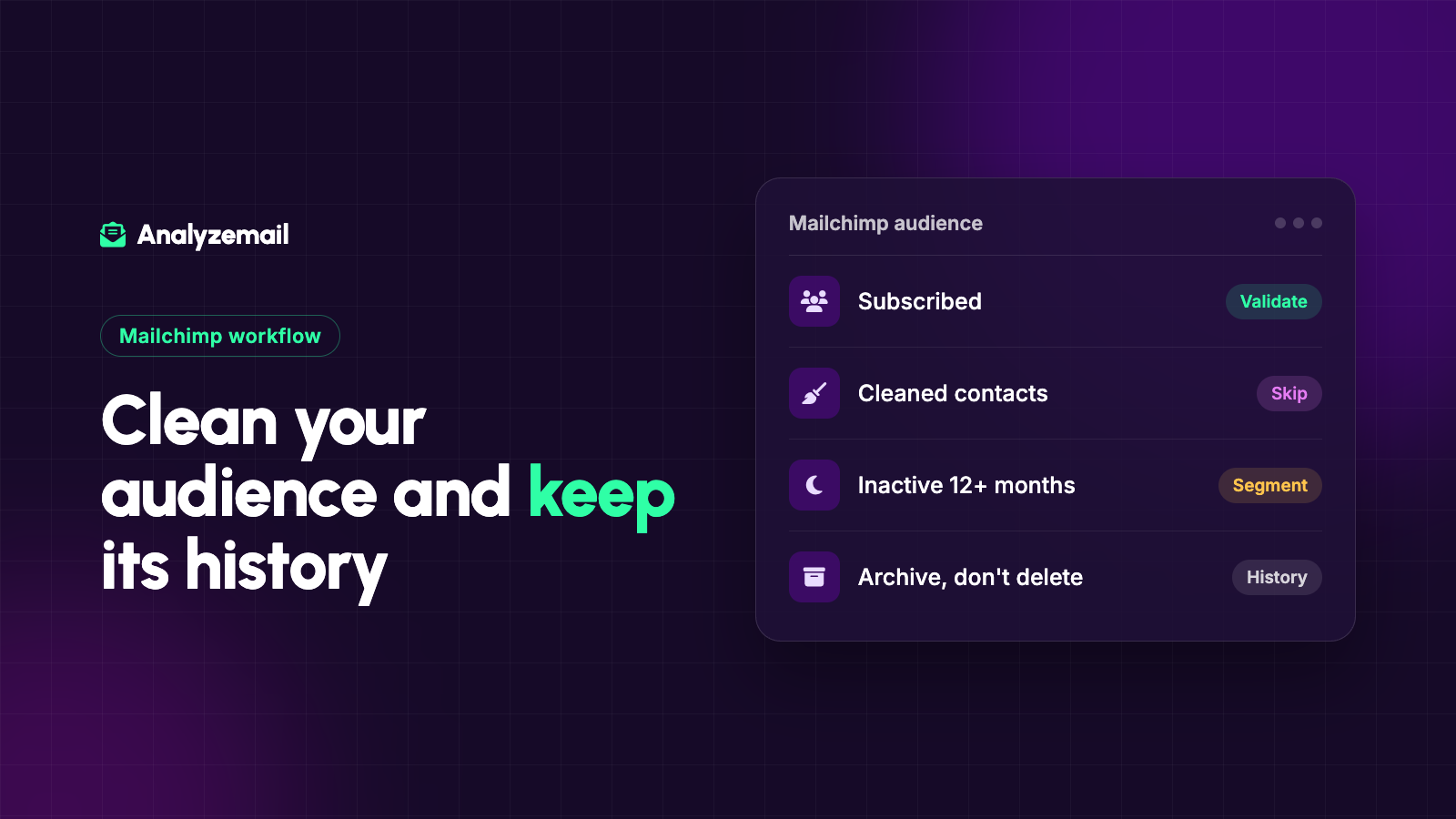
Cleaning a Mailchimp list requires more than exporting contacts, running a check, and uploading a shorter file.
Mailchimp already stores information about subscription status, campaign history, and delivery failures. An external validation result adds another kind of evidence. The cleanup works best when those records complement each other rather than overwrite one another.
The goal is to create an appropriate audience for your next send while preserving the history that explains why other contacts should stay out.
This guide focuses on that workflow. Menu labels and available controls can change, so use Mailchimp's current help pages for the exact interface steps in your account.
Understand what “cleaned” means in Mailchimp
In everyday marketing language, a cleaned list is one you have reviewed and improved. In Mailchimp, cleaned is a specific contact status associated with delivery failures.
Mailchimp's cleaned-contact documentation states that cleaned contacts do not count toward audience limits. Do not assume deleting those records will lower your bill.
That status is also different from an external check reporting that an address looks deliverable. A new technical result should not automatically undo a platform suppression or a contact's preferences.
Start by learning what the existing status means before deciding what to do with it. Otherwise a well-intended cleanup can erase useful information or reintroduce addresses you had already stopped mailing.
Separate three kinds of cleanup
Treat address quality, audience eligibility, and engagement as separate tasks.
| Cleanup question | Relevant evidence |
|---|---|
| Is there an address problem? | Validation findings and actual bounce history |
| Can this contact receive the campaign? | Current subscription and suppression status |
| Should this contact be included now? | Relationship, interests, and useful recent activity |
A subscriber can have a working address and still be irrelevant to a particular promotion. A contact with limited recent activity may still be a current customer. A cleaned contact requires different handling from an inactive subscriber.
Keeping these distinctions visible also makes it easier to explain the project to a teammate who sees the audience count fall and worries that valuable customers were removed.
Step 1: Choose a specific audience and purpose
Define the audience you are reviewing and the campaign or operating problem you are solving.
Examples include preparing an old newsletter segment for review, assessing a recent event import, or investigating address failures in a recurring campaign. “Make the whole database clean” is harder to execute because it mixes unrelated contacts and decisions.
Record the audience name, export date, and original count. Identify the person who can approve ambiguous cases and the person responsible for applying the final changes.
If multiple audiences contain overlapping contacts, include that in the plan. A cleanup in one place should not create conflicting decisions elsewhere.
Step 2: Export a master record before changing anything
Keep the information you need to reconstruct the decision: address, contact identifier where available, current status, source, relevant dates, tags, and useful engagement or customer context.
Store that master export separately from the stripped-down file used for validation. The upload file can be minimal; the reconciliation file needs history.
Also identify any connected forms, scheduled imports, and integrations that could change the audience while you work. New subscriptions and unsubscribes may occur after your snapshot.
Before applying results, compare against the live status again. The latest preference should not be replaced by an older export.
Step 3: Define the candidate list for validation
Choose the contacts whose technical quality actually needs review. Exclude contacts already ineligible for the intended send rather than treating verification as a route to reactivate them.
Keep the excluded population in your records with its existing status. You are deciding which addresses to assess, not declaring that unwanted contacts should be forgotten.
Review obvious file issues before validation: empty cells, extra spaces, multiple addresses in one field, and repeated records. Do not guess corrections to suspected typos.
The complete email list cleaning workflow provides additional guidance for preparing the candidate list.
Step 4: Bring the list into AnalyzeMail
AnalyzeMail's Mailchimp integration supports importing an audience list and sending the checked list back. Its published workflow begins by connecting the platform from your AnalyzeMail account, then choosing the list and checks.
Review the list selection and scope before starting. If you are using an exported file instead, follow the current upload requirements in AnalyzeMail's FAQ.
Preserve the resulting address findings. You will use them to make exclusions, identify review cases, and document what happened.
Do not assume the integration performs every business rule described in this guide. Subscription reconciliation and exception decisions remain part of your team's workflow.
Step 5: Review the findings before syncing
Separate clear address failures from uncertain outcomes and descriptive categories.
Catch-all results deserve their own review group. Role-based and free-provider addresses should be evaluated in the context of your audience rather than excluded automatically.
For instance, a local retailer may have many valuable customers using free webmail. A business association may legitimately communicate with shared organizational inboxes. Removing those groups wholesale would confuse category with quality.
Document the intended action for each group. This makes the subsequent update predictable and gives you a way to investigate an unexpected count.
Step 6: Decide whether inactive contacts should be archived
Inactivity is a different issue from address failure. Consider customer behavior, replies, relevant clicks, and the normal buying or participation cycle before classifying someone as inactive.
Mailchimp describes archiving as removing contacts from the active marketing audience while retaining their data. That can be more appropriate than permanent deletion when you need to preserve history.
Do not assume that a valid address should remain in every campaign indefinitely. Also do not assume a missing recent open proves the person has no interest.
Write an inactivity policy that fits the audience. A weekly editorial newsletter and an annual event list need different review windows.
Step 7: Test the update on representative records
Before applying changes broadly, check how the destination behaves for a small set of records.
Include a subscribed contact that should remain eligible, an unsubscribed contact that must stay excluded, a clear validation failure, an uncertain result, and a duplicate. Compare the expected and actual outcomes.
Confirm whether the operation updates existing contacts, creates new records, changes tags, or affects membership in an audience or segment. If the interface does not make an effect clear, resolve it before the full update.
This small test is especially valuable when a new team member or integration is handling the cleanup for the first time.
Step 8: Reconcile the counts and monitor the next send
Create a closing record showing the original population, the candidate group, the excluded group, and the group awaiting review. Explain overlaps rather than adding overlapping category counts as if they were unique people.
For the next comparable campaign, monitor address-related bounces and meaningful engagement. Keep the attempted count visible alongside the percentages.
If many failures came from one acquisition source, fix that source. If old records are reappearing, fix the import or integration that is restoring them.
Prepare a Mailchimp audience you can explain
A successful cleanup leaves you with clear actions and intact history. It also leaves a process the next person can repeat without guessing why contacts were removed.
Connect Mailchimp to AnalyzeMail to assess address quality, then apply the findings alongside Mailchimp's current contact statuses and your campaign eligibility rules.